
mParivahan Vehicle Details: Every Field Explained (2026)
Getting a vehicle’s details on mParivahan takes about ten seconds. Understanding them takes longer. The result screen is full of short labels like Fitness/REGN Upto, MV Tax, Fuel Norms and PUCC Upto, and most people only look at the owner name and the car model. The rest of the record is often more useful. It can tell you whether the car is roadworthy, whether its tax is paid, whether it can be legally sold, and whether the number plate on it is genuine.
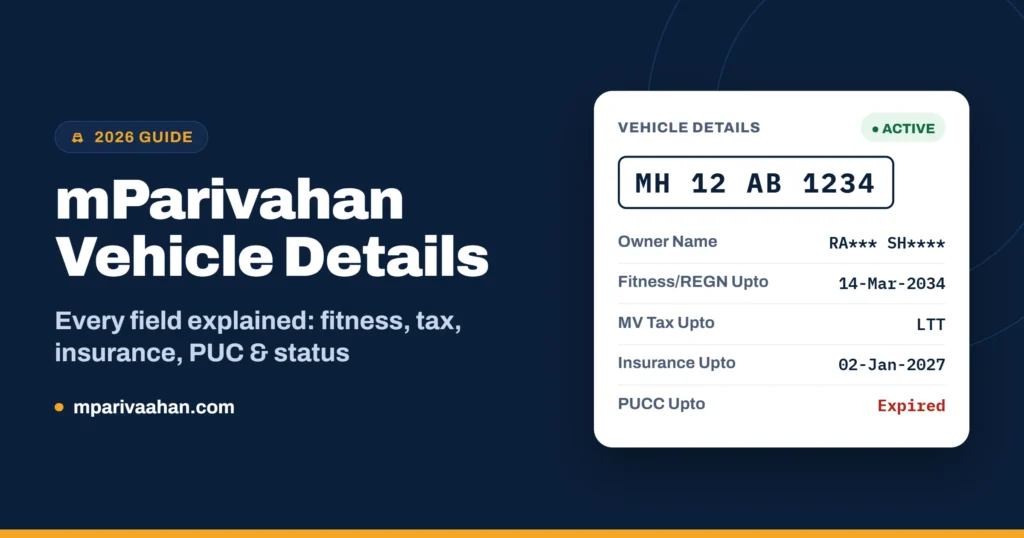
This guide goes through the mParivahan vehicle details screen one field at a time. For each field it covers what the field means, what a healthy value looks like, and when the value is a warning sign. It also covers what to do in common real-life situations.
Quick answer: Open NextGen mParivahan, go to RC Search (under Informational Services), and enter the registration number with no spaces. You’ll see the masked owner name, registering RTO, vehicle class, fuel type and emission norm, make and model, and the validity dates for registration or fitness, tax, insurance and PUC. If you need the full record for your own vehicle, add it as a Virtual RC instead.
Three Official Ways to Get Vehicle Details and How They Differ
The same Vahan database powers every official lookup. How much of that data you see depends on which route you use.
| Route | What you need | What you see | Best for |
|---|---|---|---|
| mParivahan RC Search (app) | Registration number | Public summary, owner name masked | Quick checks on any vehicle |
| Vahan “Know Your Vehicle Details” (web) | Mobile OTP login + registration number | Same public summary | Checking on a laptop and saving a screenshot as a record |
| Virtual RC (app, your own vehicle) | Registration number + last 5 digits of chassis and engine numbers + OTP | Full RC record with a scannable QR code | Proving ownership and showing documents to police |
There used to be a fourth route: an SMS in the format VAHAN <registration number> sent to 7738299899. It still appears in many guides, but replies have been inconsistent for years, and several insurers’ guides now note that it often doesn’t work. Treat it as a backup only. The app and the web portal are the dependable options.
For the full step-by-step lookup and app setup, see our mParivahan homepage guide.
Decode the Registration Number Before You Search
The number plate tells you a lot before you even search. In a standard number such as MH12AB1234:
- MH is the state or UT code (Maharashtra).
- 12 is the RTO code within that state (Pune).
- AB is the letter series the RTO is currently issuing.
- 1234 is the unique number within that series.
Check the result against this. The Registering Authority in the result should match the RTO code on the plate. If you search a plate starting with KA-05 and the result shows an RTO in another state, look more carefully. It may be a typing mistake, or it may mean the plate doesn’t belong to that vehicle.
BH (Bharat) series plates work differently. These plates, introduced in August 2021 for non-transport vehicles, follow the format YY BH #### XX. YY is the year of first registration, BH marks the Bharat series, #### is a four-digit number, and the closing letters identify the series. A BH plate is not tied to a state, so the first two characters give you the registration year, not a location.
Temporary registration numbers issued by dealers usually won’t appear under a permanent-number search. A brand-new vehicle may show “no record” until the RTO assigns its permanent number.
Every Field on the Vehicle Details Screen, Explained
Exact labels vary slightly between the app and the web portal, but the core fields are the same.
| Field | What it tells you | Warning sign |
|---|---|---|
| Owner Name | Registered owner, partially masked (for example, RA*** SH****) | The visible letters don’t match the person claiming to own the vehicle |
| Registration Date | When the vehicle was first registered in India | Much older than the seller or the paperwork claims |
| Registering Authority | The RTO that holds the record | Doesn’t match the RTO code on the plate |
| Vehicle Class | Legal category, such as Motor Car (LMV) or M-Cycle/Scooter | A private car being used as a taxi, or the class doesn’t match the body type |
| Fuel Type | Petrol, Diesel, CNG, Electric or Hybrid | The vehicle runs on CNG but the record still says Petrol |
| Fuel / Emission Norms | The emission standard, such as BS-IV or BS-VI | Matters for city entry rules and resale value |
| Maker / Model | Manufacturer and variant | Doesn’t match the vehicle in front of you |
| Fitness / Registration Upto | Private vehicles: registration validity (15 years initially). Commercial vehicles: fitness certificate expiry | Past date, meaning the vehicle can’t legally be driven |
| MV Tax Upto | How long road tax is paid for; private vehicles often show lifetime tax | A past date or “due”, which blocks most RTO services |
| Insurance Upto | Validity of the policy reported to Vahan | Expired, which makes driving the vehicle illegal |
| PUCC Upto | Expiry of the pollution certificate | Expired, which can bring a heavy fine |
| Chassis / Engine No. | Partially masked identifiers | Visible digits don’t match what’s stamped on the vehicle |
A few of these fields deserve more explanation.
Vehicle Class decides the legal use of the vehicle. A car registered as a private non-transport vehicle cannot legally carry paying passengers. A transport vehicle has its own permit, tax and fitness rules. If a vehicle offered for ride-hailing shows a private class, it is not compliant.
Fuel Type must match what is actually fitted. Fitting a CNG kit after purchase is legal only if the RTO endorses the change on the RC. If someone shows you a CNG car whose record still says Petrol, the conversion was never approved. Insurers can deny claims because of that.
Emission Norms affect where the vehicle can go and what it is worth. BS-VI norms came into force for new vehicles from April 2020. Older BS-III and BS-IV diesel vehicles face entry and usage restrictions in some cities, especially in Delhi-NCR during pollution emergencies.
The insurance date reflects what the insurer has reported, not the paper in your glovebox. Insurers upload policy data to the government system, and that can take some time. Read the date as a strong signal, not a final verdict.
Status Labels and What They Mean
Beyond the dates, the record carries an overall status. These are the labels you are most likely to see:
- Active: The registration is valid and the vehicle is in normal use. This is the status you want to see.
- NOC Issued: The RTO has cleared the vehicle to move to another state or to a new financier. A vehicle in this state may already be registered elsewhere or still waiting for it, so confirm which record is current.
- Blacklisted: The vehicle is barred from transfer and most RTO services until serious problems are cleared, such as unpaid challans, court cases or tax dues.
- Suspended / Cancelled: The registration is not valid. The vehicle cannot be legally driven until the RTO restores the registration.
- Scrapped / De-registered: The vehicle has been taken off the register, for example through a registered scrapping facility. A plate showing this status should not be on a running vehicle.
If a status on the screen doesn’t fit what you were told about the vehicle, take it seriously and ask questions before you go any further.
Why Your Own Vehicle Shows More Than Someone Else’s
When you search another person’s vehicle, mParivahan shows only a privacy-filtered summary. You will not see the owner’s full name, address, phone number, or the full chassis and engine numbers. This follows India’s data protection framework, and it is intentional, not a bug.
When you add your own vehicle as a Virtual RC, you prove ownership with the chassis and engine digits and an OTP. In return you get the complete record and a QR code that traffic police can verify. That is the version that matters during a roadside check. A screenshot of a public search is not proof of anything.
If you have a genuine legal need for another owner’s full details, such as an accident claim, those details come through the police (via an FIR) or through your insurer. Apps and websites do not provide them legitimately.
Real Situations: What to Check and What to Do
A vehicle hit yours and drove away. Note the number plate and search it immediately. Check whether the make and model match what you saw, because a mismatch suggests a fake or cloned plate. That detail is worth putting in your police complaint. Then check Insurance Upto. A valid policy means your third-party claim has an insurer to pursue. Give the number to the police and your insurer, and let them access the owner’s full details through official channels.
You suspect a cloned number plate. Plate cloning means copying a real vehicle’s number onto a different vehicle, usually to dodge challans or hide a stolen car. If you are getting challans for places you never drove, search your own number and compare the photo evidence with your vehicle. If someone else’s car is carrying your number, file a police complaint and dispute the challans. Keep your Virtual RC record as proof of what you actually own.
Your insurance renewal is coming up. Check Insurance Upto a few weeks ahead. Under IRDAI rules, your accumulated No Claim Bonus generally stays protected only if you renew within 90 days of expiry. Driving even one day without cover is an offence under the Motor Vehicles Act.
You manage commercial vehicles. For transport vehicles, Fitness Upto and MV Tax Upto are the dates to track, because both expire far more often than on private vehicles. Set reminders at least a month before each date so a vehicle doesn’t get stopped at a check-post or an Automated Testing Station queue.
You’re buying a used car. The fields above are your first check. For the full pre-purchase checklist, including hypothecation, pending challans and FASTag dues, see our used-car verification guide.
When the Details Are Wrong or Out of Date
The Vahan record is only as accurate as what RTOs, insurers and testing centres upload. These are the common problems and how to fix each one:
- Insurance shows expired but you’ve renewed. Wait 24 to 72 hours. If it still shows expired, ask your insurer to confirm they have reported the policy. Keep the policy PDF on your phone until the record updates.
- PUC shows expired right after a test. The testing centre may not have uploaded the certificate yet. Recheck after a few hours. If it still hasn’t updated, go back to the centre with your printed certificate.
- Wrong owner name, address or fuel type. These fields change only through the RTO. Apply for the relevant correction or alteration service on the Vahan portal with supporting documents. A CNG or LPG conversion needs a formal alteration endorsement.
- Old address after moving states. Your vehicle stays on the old state’s register until you complete the NOC and re-registration process in the new state.
- “No record found.” This is usually a formatting problem or an older record that hasn’t been digitised. The step-by-step fixes are in our common errors section.
Be Careful With Third-Party “Vehicle Owner Details” Apps
Many apps and websites promise “full owner details” for any number plate, often including phone numbers or addresses. Official sources do not publish that data, so any app showing it got it some other way. Many of these apps also collect your own phone number and searches. For anything you might rely on legally, such as a purchase, a claim or a police complaint, use only mParivahan or the parivahan.gov.in portals.
Frequently Asked Questions
Is checking vehicle details on mParivahan free?
Yes. Searching vehicle details, both in the app and on the Vahan portal, costs nothing. Fees apply only to actual RTO services.
Can I see the owner’s phone number or address?
No. Public searches show only a masked name. Full owner details are released only to authorities such as the police, or through legal processes.
Does the vehicle details screen show pending challans?
Not on the same screen. Use the e-challan check in the app or at echallan.parivahan.gov.in, searching by vehicle number.
Why do the app details differ from my physical RC?
The app shows the live database. Your printed RC shows the record as it was on the day it was printed. If you have since changed your address, paid tax or ended a loan, the app is the more current of the two.
Can I check a BH-series vehicle on mParivahan?
Yes. Enter the number exactly as it appears on the plate, without spaces, for example 22BH1234AA.
Is the mParivahan result enough proof for traffic police?
Only if it is your own vehicle saved as a Virtual RC, with its QR code. A public search result or a screenshot is not accepted as a document.