mParivahan: Check RC, DL, Vehicle Details & Pay e-Challan
mParivahan — officially NextGen mParivahan — is the Government of India’s mobile app for transport services, built by the National Informatics Centre (NIC) under the Ministry of Road Transport and Highways (MoRTH). With it, you can carry your RC and driving licence as legally valid digital documents, look up any Indian vehicle’s owner details, and clear traffic e-challans without visiting an RTO. Here you will get the complete process of how to check your RC, fetch your virtual DL, check and pay an e-challan, and verify a vehicle before buying it.
Get the official NextGen mParivahan app for digital RC, virtual DL, and instant e-challan checks.
Driving Licence Services
Vehicle & RC Services
What is mParivahan?
mParivahan is the official Android and iOS app from the Ministry of Road Transport and Highways (MoRTH), developed by the National Informatics Centre (NIC) under MeitY. The current version is branded NextGen mParivahan and connects directly to the Vahan (vehicle) and Sarathi (driving licence) databases — the two backend systems that run India’s RTO network under the Digital India initiative.
In other words: it’s how you carry your vehicle and licence records on your phone, look up any registered Indian vehicle, and pay traffic fines — all from one app linked to live government data.
App Specifications
| Field | Value |
| App name | NextGen mParivahan |
| Package ID | com.nic.mparivahan |
| Developer | National Informatics Centre (NIC) |
| Current version | 2.0.135 (released January 2026) |
| App size | ~36 MB |
| Android requirement | 8.1 and above |
| iOS requirement | 14.0 and above |
| Play Store rating | 3.2★ (690K+ reviews) |
| Play Store downloads | 50,000,000+ |
| Languages supported | English, Hindi, Marathi, and other regional languages |
| Official support email | helpdesk-mparivahan@gov.in |
| Official helpline | +91-120-4925505 |
Digital documents accessed through mParivahan are legally accepted across India under the Motor Vehicles Act, 1988 and Section 4 of the Information Technology Act, 2000 — meaning a virtual RC or DL pulled live inside the app holds the same legal weight as the physical card.
Quick Tools: Check RC, DL & Challan in Seconds
RC Status Check by Vehicle Number
- What you’ll need: vehicle registration number + last 5 digits of chassis (or engine) number.
- What you’ll see: owner name (partially masked for privacy), registration date, registering RTO, make and model, fuel type, vehicle class, RC validity, insurance validity, and PUC expiry.
Driving Licence Status Check
- What you’ll need: your 16-digit DL number (formats accepted: DL-1420110012345 or DL14 20110012345) + date of birth.
- What you’ll see: issue date, expiry date, vehicle classes endorsed (LMV, MCWG, HMV, etc.), holder’s name, and the current status — Active, Expired, or Suspended.
e-Challan Check & Pay
- What you’ll need: any one of — vehicle number, DL number, or challan number — plus the captcha shown on the portal.
- What you’ll see: every pending challan against the input, with date, location, violation type, fine amount, and the photographic evidence captured by the camera or officer.
How to Download & Set Up NextGen mParivahan (Android & iOS)
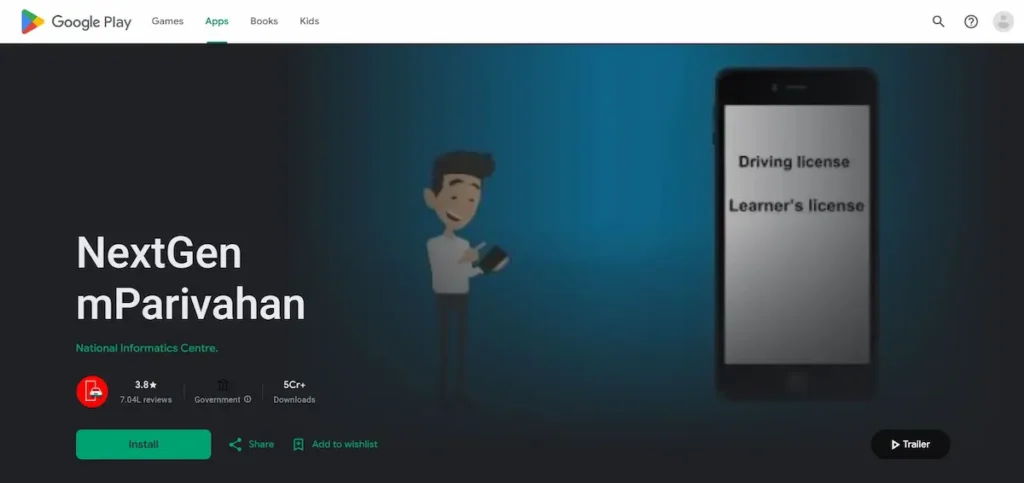
Step 1: Install the Official App (Avoid Fake Lookalikes)
The Play Store and App Store both have copycat apps that mimic the mParivahan icon. Install only the genuine one.
- Developer name to look for: National Informatics Centre or NIC eGov Mobile Apps
- App name (current): NextGen mParivahan
- Package ID (Android): com.nic.mparivahan
- Cost: Free. The app does not charge for download, registration, or document fetching. Only actual government services like challan payment or DL renewal carry the regular RTO fees.
Step 2: Open the App and Choose Your Language
- Open the app after install. The first screen is the language selector.
- Tap your preferred language and continue.
- Supported options include English, Hindi, Marathi, and several Indian regional languages (the exact list depends on your app version).
- You can change the language later from Settings inside the app — pick one now to get started.
Step 3: Sign Up with Mobile Number and Set a 6-Digit MPIN
This is the step where most setup problems actually begin — not in the app, but in what number you enter.
- Tap Sign Up (new users) on the home screen.
- Enter your 10-digit mobile number.
- Wait for the 6-digit OTP by SMS and enter it to verify.
- Set a 6-digit MPIN when prompted. The current version uses 6 digits, not 4.
- Confirm the MPIN by entering it again.
- Submit. Your account is live.
Step 4: Add Your First Document (RC or DL)
A blank dashboard isn’t useful. Add one document right after sign-up so the app actually does something for you.
To add a Virtual RC, you’ll need:
- Full vehicle registration number (e.g., MH12AB1234, no spaces).
- Last 5 digits of your chassis number.
- Last 5 digits of your engine number.
Both numbers are on your physical RC card. If you can’t find them, check the dealer invoice or the chassis number stamped on the vehicle frame.
To add a Virtual DL, you’ll need:
- Your 16-digit DL number.
- Your date of birth (exactly as printed on the DL).
After verification, the document saves to your dashboard with an encrypted QR code that traffic police can scan — even offline.
Permissions the App Asks For (and Why Each One Matters)
The app asks for three permissions during first use. Granting them is optional but each one unlocks a real feature, not just nag screens.
- Camera — used only to scan QR codes (your own virtual document QR, or a QR shown by an officer’s e-Challan device for cross-check). The app does not record video or upload images.
- Location — used by the “Find Nearest RTO” feature and for accident-reporting services. If you decline, those two features won’t work, but everything else still does.
- Notifications — used to alert you when a new challan is issued against your vehicle, when your insurance or PUC is about to expire, and when the app pushes a service update. This is the one permission worth keeping on — it’s how you find out about a challan before the 60-day window closes.
Update Your Mobile Number in Vahan & Sarathi (The Step Most Users Skip)
If mParivahan keeps showing “No records found” for your vehicle or DL, the issue isn’t the app — it’s the mobile number on file at your RTO. The app uses your phone number as the key to handshake with the central Vahan and Sarathi databases. If they don’t match, no document will load, no matter how often you reinstall. Update the number on the official portal first, wait a day, then retry. This single step fixes the majority of fetch failures.
अगर आपका RC mParivahan में नहीं दिख रहा, सबसे पहले मोबाइल नंबर अपडेट करें — यही 90% मामलों में दिक्कत है।
The 2025 MoRTH advisory made this an Aadhaar-authenticated, fully online process — no RTO visit, no fee in most cases.
Update for Vehicle (Vahan)
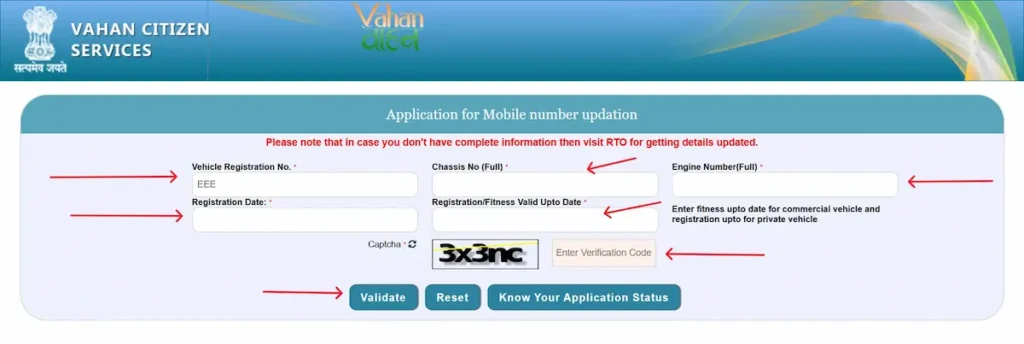
You’ll need: vehicle registration number, full chassis number, full engine number, registration date, registration/fitness valid-upto date, Aadhaar-linked mobile (for OTP), and the new mobile number.
- Open
vahan.parivahan.gov.in/mobileupdate/. - Enter your vehicle registration number, full chassis number, and full engine number.
- Enter your registration date and registration/fitness valid-upto date (commercial vehicles use fitness date; private vehicles use RC valid-upto date).
- Solve the captcha and click Validate.
- On the next screen, enter your Aadhaar number, tick consent, request OTP.
- Enter the OTP, type your new mobile number, and submit.
- Confirmation appears on screen and via SMS.
A few state portals also ask for the last 5 digits of the engine number alongside the chassis — if your screen shows that field, fill it from your physical RC.
Update for Driving Licence (Sarathi)
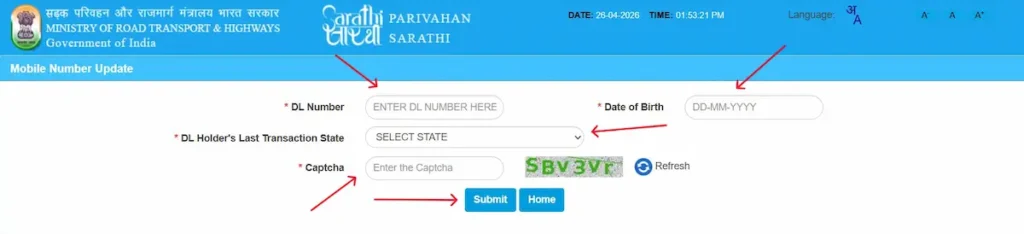
You’ll need: DL number, date of birth, your DL holder’s last transaction state, Aadhaar-linked mobile (for OTP), and the new mobile number.
- Open
sarathi.parivahan.gov.in/sarathiservice/mobNumUpdpub.do. - Enter your DL number, date of birth (DD-MM-YYYY), and select your DL Holder’s Last Transaction State from the dropdown.
- Solve the captcha and click Submit.
- On the next screen, complete Aadhaar OTP verification, type your new mobile number, and submit. A confirmation SMS follows.
Why it takes 24–48 hours. The central register updates instantly, but mParivahan reads from the state RTO database, which syncs back on a delay. Wait a full day before retrying.
How to Get Your Virtual RC on mParivahan
To fetch your virtual RC: open mParivahan, tap My RC → Create Virtual RC, enter your vehicle registration number, then verify with the last 5 digits of your chassis number and the last 5 digits of your engine number. The RC saves to your dashboard with an encrypted QR code that traffic police can scan offline. Adding it is a one-time process — after that, your RC is always a tap away.
Step-by-Step Process to Add Virtual RC
- Open mParivahan and sign in with your mobile number and 6-digit MPIN.
- On the home dashboard, tap your profile name (top of the screen) and select My RC.
- Tap Create Virtual RC.
- Enter your vehicle registration number in the format MH12AB1234 — no spaces, no hyphens, all in capital letters.
- Tap the search icon. The app pulls basic vehicle details — owner name (partially masked), make, model, fuel type — from the Vahan database for confirmation.
- Tap Add to Dashboard for Virtual RC.
- When prompted, enter the last 5 digits of your chassis number and the last 5 digits of your engine number.
- An OTP is sent to the mobile number registered with your RC at the RTO. Enter it.
- The app confirms the RC has been added. It now lives under My RC on your dashboard, with a QR code traffic police can scan.
Where to Find Your Chassis Number and Engine Number
This is the step that trips most people up — they look at the front of the smart-card RC and see only the registration number. Here’s where the chassis and engine numbers actually are:
- On your physical RC card: flip it to the back side. Both numbers are usually printed on the right column under “Chassis No.” and “Engine No.”
- On the dealer invoice: the original sale invoice from the dealer lists both, normally on the first page.
- Stamped on the vehicle itself: the chassis number is etched into the metal frame — for cars, usually under the bonnet or on the firewall; for two-wheelers, on the steering neck or near the engine. The engine number is stamped on the engine block.
- In your insurance policy document: both numbers appear in the vehicle-details section.
Tip: if you can’t find your physical RC right now, take a photo of the back of the card with your phone the next time you have it in hand, and save it to a private folder. You’ll need these numbers more than once over the lifetime of the vehicle.
Sharing Your Virtual RC with a Family Member
mParivahan lets you grant time-limited access to your RC — useful when your spouse, child, or driver needs to show the document during a roadside check.
- Open the saved RC under My RC.
- Tap the Share option.
- Enter the recipient’s mobile number (must be registered on mParivahan) and choose how long the access stays valid — typically a few hours to a few days.
- The recipient gets a notification on their app and can show the RC during the access window. Once it expires, the access is revoked automatically.
This works well for fleet owners managing drivers and for parents lending the family car. The original RC stays on your dashboard the whole time — sharing doesn’t transfer ownership of any kind.
Common Reasons RC Doesn’t Load
If you’ve followed the steps and the RC still won’t add to your dashboard, one of these six is almost always the cause:
- Mobile number not updated in Vahan. This is the single most common issue. Update it on the Vahan portal and wait 24–48 hours before retrying. (See Section 5.)
- Pre-2010 vehicle whose paper records aren’t digitized. Many older vehicles, especially in smaller RTOs, exist only in physical ledgers. You’ll need to visit your RTO and request a Backlog Entry in the Vahan system. Once approved, the vehicle appears in the app within 48 hours.
- Wrong format on the registration number. The app expects MH12AB1234 — no spaces, no hyphens. Even one stray character makes the lookup fail.
- Chassis or engine last-5 entered with the wrong case. If your chassis ends in MA12B, type it exactly as printed — letters are case-sensitive in some app versions.
- Server load between 11 AM and 2 PM. Vahan and Sarathi servers are heaviest during business hours. If you keep getting “Server Error” or timeouts, retry early morning or after 9 PM.
- Your state RTO hasn’t synced to the central Vahan 4.0 database yet. A handful of states are still completing their migration. If nothing else explains the failure, contact helpdesk-vahan@gov.in with your registration number for confirmation.
How to Get Your Virtual Driving Licence on mParivahan
To fetch your virtual DL: open My DL → Create Virtual DL, enter your 16-digit DL number (formats accepted: DL-1420110012345 or DL14 20110012345), and your date of birth. After verification, the licence saves under My DL with an encrypted QR code that’s accepted by traffic police across India.
Step-by-Step Virtual DL Setup
- Open mParivahan and sign in.
- Tap your profile name at the top of the home screen and select My DL.
- Tap Create Virtual DL.
- Enter your Driving Licence number in either of the accepted formats — total of 16 characters including the hyphen or space.
- Tap the search icon. The app pulls your DL details from the Sarathi database for confirmation.
- Tap Add to Dashboard for Virtual DL.
- Enter your date of birth exactly as printed on the physical DL.
- The app verifies and saves the licence to your dashboard with a QR code.
Reading Your DL Status: Active, Expired, or Under Process
Your virtual DL displays one of three status indicators, and what each one actually means matters more than most people realise:
- Active (green): the licence is currently valid. You’re cleared to drive vehicles in the classes endorsed.
- Expired (red): the validity date has passed. The DL still appears in the app, but it does not authorize you to drive. Many users assume the digital copy gives them a grace period — it doesn’t. Driving on an expired DL is treated the same as driving without one. You must apply for renewal on Sarathi; once the RTO approves it, the status flips to Active within 24–48 hours and the new validity reflects in mParivahan.
- Under Process (orange/yellow): a renewal, address change, or update is being processed by the RTO. The previous validity still applies until the new card is issued.
DL QR Code & Offline Verification by Traffic Police
The QR code on your virtual DL is the legal mechanism that makes the digital copy enforceable. When a traffic officer scans it with their departmental e-Challan device, the device decrypts the QR locally and verifies your licence against a cached copy of the Sarathi database — even with no internet. That offline scan is what separates a virtual DL from a screenshot. A screenshot can be edited; a live QR scan reads from the database itself.
The legal basis sits across two laws:
- Section 4 of the Information Technology Act, 2000 establishes that an electronic record satisfies the legal requirement for a document in physical form.
- The Motor Vehicles Act, 1988 (read with the MoRTH advisory dated 19 August 2018) directs traffic enforcement officers across India to accept digital documents shown via mParivahan or DigiLocker as equivalent to the physical card.
Check Your Vehicle Owner Details by Number Plate
Sometimes you need to look up a vehicle that isn’t yours — verifying a used car before paying, identifying a vehicle blocking your gate, or following up after a hit-and-run. mParivahan and the Vahan portal both let you do this with just the registration number.
What Information You’ll See
After a successful lookup, the system shows:
- Owner name — partially masked (e.g., RAH** SHA****) for privacy
- Registration date and registering RTO
- Make and model
- Fuel type — Petrol, Diesel, CNG, Electric, or Hybrid
- Vehicle class — LMV, MCWG, HMV, etc.
- Vehicle age (calculated from registration date)
- Insurance validity — status only, not the policy number or insurer
- Fitness certificate validity
- PUC validity
You won’t see the owner’s full name, address, phone number, or chassis/engine number. Those are protected.
How to Look Up a Vehicle
Through mParivahan (app):
- Open the app and sign in.
- From the home screen, tap RC Search under Informational Services.
- Enter the registration number (e.g., MH12AB1234) — no spaces.
- Tap search. Details appear on screen.
Through the Vahan portal (web):
- Visit vahan.parivahan.gov.in/nrservices/.
- Click Know Your Vehicle Details.
- Sign in with your mobile number and OTP. (First-time users need to register — takes 2 minutes.)
- Enter the vehicle number and captcha. Tap Vahan Search.
Both routes pull from the same database, so the information shown is identical.
Why Owner Names Are Masked
The masking follows the Digital Personal Data Protection Act, 2023, which restricts open access to personal data without consent. Public RC lookups intentionally show only enough to verify a vehicle, not enough to identify or contact the owner. If you need fully unmasked details — for example, to file an insurance claim against a hit-and-run driver — you’ll need either a police FIR or a court order, which the RTO is then legally allowed to act on.
Buying a Used Car? Verify the Vehicle Before You Pay
The Vahan database holds nearly everything you need to spot a problem vehicle before you hand over money. A 5-minute check has saved buyers from blacklisted cars, undisclosed bank loans, and ownership disputes that take months to clear.
The 8 Things to Check on Vahan Before Paying
- Owner name on RC vs seller’s Aadhaar. If they don’t match, you’re not buying from the legal owner. Even if the seller claims it’s “his brother’s car,” walk away unless the actual owner is on the transaction.
- Registration date and vehicle age. The seller said it’s a 2019 model. Vahan will show you exactly when it was first registered. Discrepancies here often mean the odometer has been tampered with too.
- Hypothecation status. If the RC shows Hypothecated to [bank name], the seller still has an active loan on the vehicle. Demand the bank’s NOC and proof that the seller has filed Form 35 to terminate the hypothecation. Don’t accept “I’ll do it after the sale” — the bank can repossess the vehicle from you.
- Blacklist status. A blacklisted vehicle cannot be transferred. If Vahan flags it as blacklisted, the seller is hiding unresolved offences, court cases, or unpaid challans serious enough to lock the record.
- Insurance validity. Expired insurance is the cheap-to-fix red flag — but it tells you the seller has been driving illegally, which usually means other corners were cut on maintenance and compliance.
- PUC validity. Driving without a valid PUC carries a fine of up to ₹10,000 under the Motor Vehicles (Amendment) Act, 2019. If the seller’s PUC expired weeks ago, that fine becomes yours the day after the transfer.
- Fitness certificate. For any vehicle 14+ years old, fitness validity is critical. You’ll likely face a fitness re-test soon and a Green Tax to keep the vehicle on the road past 15 years. Factor that cost into your offer.
- Pending challans and FASTag arrears. Under the Central Motor Vehicles (Second Amendment) Rules, ownership transfer is now blocked when there are unpaid challans or unpaid FASTag toll dues. Both must be cleared before the RTO will process Form 29/30.
What is Hypothecation?
Hypothecation means a bank or lender has a financial claim on the vehicle until the loan is repaid. The RC stays in the borrower’s name, but the bank can legally seize the vehicle if the loan defaults — even after you buy it.
The fix is Form 35 (Hypothecation Termination) filed on the Vahan portal, with the bank’s No Objection Certificate attached. Make this paperwork the seller’s job, completed and reflected in the RC, before you transfer money.
Six Reasons to Walk Away from a Deal
- The seller insists on cash and no formal RTO transfer.
- The owner name on the RC doesn’t match the seller’s Aadhaar.
- Vahan shows the vehicle as blacklisted or stolen.
- Hypothecation is active and the seller can’t produce a bank NOC.
- Multiple unpaid challans and the seller refuses to clear them first.
- The seller refuses to come to the RTO with you for the ownership transfer.
Check & Pay e-Challan Online
To check pending traffic challans, go to echallan.parivahan.gov.in, click Check Online Services → Check Challan Status, enter your vehicle number along with the last 5 digits of your chassis or engine number, and view the violation, fine amount, location, and date. Pay using UPI, net banking, or card from the same screen.
Three Ways to Check Your Challan
You can search by any one of these:
- Vehicle number — most common. Enter the registration number plus last 5 digits of chassis or engine.
- DL number — useful if you got a challan but don’t remember which vehicle it was on.
- Challan number — fastest if you received an SMS with the challan number.
After you submit, the portal lists all pending challans linked to that input.
What Each Field on the Challan Means
- Photographic evidence — the actual image captured by the ANPR camera or the officer’s device. Tap the image icon to view.
- Violation type — the offence (overspeeding, signal jumping, no helmet, etc.) with the specific MV Act section.
- Date, time, and location — exact spot and timestamp of the offence.
- Issuing RTO / traffic branch — which authority issued the challan.
- Fine amount — the compounding fee for that offence.
- Due date — typically 60 days from issue. After this, the challan moves to Virtual Court.
Pay Using UPI, Card, or Net Banking
- Tick the challan you want to pay and click Pay Now.
- Verify your mobile number with OTP.
- Choose a payment mode: UPI (GPay, PhonePe, Paytm), debit/credit card, or net banking.
- Complete the transaction.
UPI is the fastest — the status usually flips to Paid within minutes. Card and net-banking transactions can take up to 24 hours to reflect because of bank-gateway sync.
Always Save the Receipt
Once payment succeeds, the portal generates a PDF receipt. Download it and save it. If the system later still shows the challan as pending — which does happen — that receipt is your only proof of payment. No receipt, no defence.
If the Challan Is Wrong
Wrong number plate read by the camera, duplicate fine, or a violation you weren’t actually responsible for? Don’t pay it under pressure. Dispute it through the right channel:
- Parivahan grievance portal — parivahan.gov.in → Contact Us → file a complaint with vehicle and challan details.
- State traffic police complaint cells — Delhi Traffic Police, Mumbai Traffic Police, Bengaluru Traffic Police, Chennai City Traffic Police, and Kolkata Traffic Police all accept online disputes through their own portals.
- Email — helpdesk-echallan@gov.in for technical/data errors.
Common mParivahan Errors & Fixes
Each fix below is the one that actually works — verified against NIC helpdesk replies, Play Store reviewer reports, and the official Vahan/Sarathi documentation. Try them in the order listed.
- “Unable to Verify MPIN.” Go to Settings → Apps → NextGen mParivahan → Storage and tap Clear Cache then Clear Data. Sign in fresh. If it still fails, uninstall and reinstall the latest version (2.0.135 or newer). Still stuck? Retry between 9 PM and 6 AM — this error is often a server-side timeout, and Vahan/Sarathi load is heaviest between 11 AM and 2 PM.
- “OTP Not Received.” Switch off any DND filter blocking transactional SMS — most carriers route Parivahan OTPs through transactional channels. Confirm the mobile number you signed up with is the one currently linked to your Aadhaar (verify at
myaadhaar.uidai.gov.in). Wait a full 120 seconds before tapping Resend — rapid retries create a queue jam at the SMS gateway. Switch from Wi-Fi to mobile data if you’re on corporate or hotel Wi-Fi, and try off-peak hours. - “Vehicle Details Not Found.” Three causes, in order of likelihood: (1) your mobile number isn’t updated in Vahan — fix at
vahan.parivahan.gov.in/mobileupdate/and wait 24–48 hours, this is roughly 9 out of 10 cases; (2) the vehicle was registered before 2010 and paper records aren’t digitised yet — visit your RTO for a Backlog Entry; (3) wrong format on the registration number — use all caps, no spaces, no hyphens (MH12AB1234, notMH 12 AB 1234). - Aadhaar e-KYC mismatch. The system compares your DL/RC name with Aadhaar character by character. Usual culprits: a middle name on one but not the other, date of birth off by a digit, or a different transliteration/extra space. Fix it by updating whichever document is wrong on its source portal — Sarathi for DL, UIDAI for Aadhaar. Updating Aadhaar through UIDAI is usually faster and cheaper.
- App crashes or blank screen. Update to the current version (2.0.135, January 2026), clear cache, and confirm your OS meets the minimum — Android 8.1+ or iOS 14.0+.
- Virtual RC QR code not generating. Delete the vehicle from your dashboard and re-add it with a fresh fetch. This forces a re-pull from the central Vahan database and regenerates the QR. Your data isn’t lost — it’s pulled fresh from the server each time.
- Session timeout / login loop. If the app logs you out the moment you log in: disconnect any active VPN, switch from corporate Wi-Fi to mobile data, and disable any privacy or proxy app intercepting traffic. MoRTH servers block several VPN exit-IP ranges and report it as a session timeout instead of a clear blocked-network message.
Are Virtual RC and DL Legally Valid?
Yes. A virtual RC or DL opened live inside the mParivahan or DigiLocker app is legally equivalent to the physical card across every Indian state and UT. The legal backing comes from two places: Section 4 of the Information Technology Act, 2000, which gives electronic records the same standing as paper, and a MoRTH advisory dated 19 August 2018, which directs traffic enforcement officers to accept digital RC and DL shown via these apps. An officer cannot legally refuse a valid live virtual document.
A screenshot or PDF is not valid. The verification mechanism is the encrypted QR code — when the officer scans it on their e-Challan device, it decrypts against the cached Vahan or Sarathi database and confirms the document is genuine, current, and tied to the vehicle in front of them. A static image bypasses that check, can be edited, and won’t reflect a suspended DL. Officers can refuse it, and they should.
mParivahan vs DigiLocker vs Physical Card
| Feature | Physical RC/DL | mParivahan | DigiLocker |
|---|---|---|---|
| Legal validity | Original | Statutory equivalent | Statutory equivalent |
| Offline access | Always | Yes (cached QR) | Yes (issued docs cached) |
| Verification | Visual inspection | Encrypted QR scan | Encrypted QR scan |
| Real-time updates | No (re-print needed) | Yes | Periodic sync |
| Best for | RTO submissions | Roadside checks, e-challan | General ID storage |
mParivahan is purpose-built for transport — challans, vehicle lookups, RC/DL all in one place. DigiLocker is a general-purpose government ID locker that happens to store RC and DL too. Both are accepted on the road; mParivahan is faster for transport-specific actions.
The rule is simple: open the app, let the officer scan the live QR. That’s the only digital format that holds up under the Motor Vehicles Act.
RTO Codes & Official Transport Portals (All States and UTs)
Every Indian vehicle’s number plate begins with a 2-letter state code followed by a 1- or 2-digit RTO code. MH-12 is Pune RTO in Maharashtra. DL-01 is Delhi (Mall Road). KA-01 is Bangalore Central. The RTO code tells you exactly which Regional Transport Office registered the vehicle.
States — RTO Codes & Official Websites
| State | Code | Official Website |
| Andhra Pradesh | AP | aptransport.org |
| Arunachal Pradesh | AR | arunachalpradesh.gov.in |
| Assam | AS | transport.assam.gov.in |
| Bihar | BR | state.bihar.gov.in/transport |
| Chhattisgarh | CG | cgtransport.gov.in |
| Goa | GA | goa.gov.in/department/transport |
| Gujarat | GJ | cot.gujarat.gov.in |
| Haryana | HR | haryanatransport.gov.in |
| Himachal Pradesh | HP | himachal.nic.in/transport |
| Jharkhand | JH | jhtransport.gov.in |
| Karnataka | KA | transport.karnataka.gov.in |
| Kerala | KL | mvd.kerala.gov.in |
| Madhya Pradesh | MP | transport.mp.gov.in |
| Maharashtra | MH | transport.maharashtra.gov.in |
| Manipur | MN | manipur.gov.in |
| Meghalaya | ML | megtransport.gov.in |
| Mizoram | MZ | transport.mizoram.gov.in |
| Nagaland | NL | mvd.nagaland.gov.in |
| Odisha | OD | odishatransport.gov.in |
| Punjab | PB | punjabtransport.org |
| Rajasthan | RJ | transport.rajasthan.gov.in |
| Sikkim | SK | sikkim.gov.in/transport |
| Tamil Nadu | TN | tnsta.gov.in |
| Telangana | TS | transport.telangana.gov.in |
| Tripura | TR | transport.tripura.gov.in |
| Uttar Pradesh | UP | uptransport.upsdc.gov.in |
| Uttarakhand | UK | transport.uk.gov.in |
| West Bengal | WB | transport.wb.gov.in |
Union Territories — RTO Codes & Official Websites
| Union Territory | Code | Official Website |
| Andaman & Nicobar | AN | transport.and.nic.in |
| Chandigarh | CH | chdtransport.gov.in |
| Dadra & Nagar Haveli, Daman & Diu | DN / DD | daman.nic.in |
| Delhi (NCT) | DL | transport.delhi.gov.in |
| Jammu & Kashmir | JK | transport.jk.gov.in |
| Ladakh | LA | ladakh.gov.in |
| Lakshadweep | LD | lakshadweep.gov.in |
| Puducherry | PY | transport.py.gov.in |
Why You Should Stick to .gov.in Domains
Phishing sites that mimic government portals have multiplied since 2024. Some look almost identical to the real Vahan or Sarathi pages. They harvest your Aadhaar, OTP, and card details under the guise of “fast challan payment” or “instant RC update.”
Two checks before you enter anything: confirm the domain ends in .gov.in or .nic.in (not .com, .in, or .net), and look for the lock icon in your browser address bar. If either is missing, close the tab.
Driving Licence: Apply, Renew, Replace (Sarathi Portal)
Every driving-licence service in India runs through the Sarathi portal at sarathi.parivahan.gov.in. The most common ones, summarised:
Learner’s Licence (LL)
You can apply from age 16 (gearless 2-wheeler up to 50cc, with parental consent), 18 (geared 2-wheeler and LMV/cars), or 20 (commercial/transport vehicles). The LL is valid for 6 months from issue. Most states now offer the LL test online with Aadhaar face authentication, so you don’t have to visit the RTO for the test itself.
Permanent Driving Licence (DL)
You can apply for a permanent DL after holding your LL for at least 30 days and no more than 180 days. The driving test is conducted at your RTO or at an accredited driving school. Once issued, a DL for private cars/2-wheelers is valid until you turn 40, then renewed in 10-year cycles, with shorter renewal cycles after 50 and 55. Commercial DLs renew every 3 years.
DL Renewal
A DL must be renewed within 30 days of expiry to avoid a late fee. Beyond that grace period, a late fee of ₹300+ applies on top of the standard renewal fee. If your DL has been expired for more than 5 years, you cannot renew — you must apply for a fresh DL as a new applicant.
Duplicate DL
You’ll need a duplicate if your physical card is lost, stolen, or damaged. Required: a police FIR (for lost/stolen cases), Form LLD, address and age proof. Cost: roughly ₹250–₹450 depending on state and smart-card fee.
International Driving Permit (IDP)
Required for driving in most countries outside India. Fee: ₹1,000. Validity: 1 year from issue. You’ll need a valid Indian DL, passport copy, visa (in some cases), and a medical certificate. Apply on Sarathi under your home-state RTO.
Add a Vehicle Class to Existing DL
If you have a 2-wheeler licence and want to add LMV (car), or you want to add a heavy-vehicle endorsement, file Form 8 on Sarathi. Fee: ₹500. You’ll need to take a fresh driving test for the new class.
DL Service Fees (India-Wide)
| Service | Fee |
| Learner’s Licence | ₹200 |
| Permanent Driving Licence | ₹200 |
| Driving Licence Test | ₹300 |
| DL Renewal | ₹200 |
| Late Renewal (after 30-day grace) | ₹300 + ₹200 base |
| Duplicate DL | ₹250 (+ smart-card fee) |
| International Driving Permit | ₹1,000 |
| Add Vehicle Class | ₹500 |
State-level smart-card fees and stamp duties may add ₹50–₹200 depending on your RTO.
Vehicle Services on the Vahan Portal
Every vehicle service after registration runs through vahan.parivahan.gov.in/vahanservice/. Quick reference for the most-used ones.
New Vehicle Registration
For a new vehicle, the dealer usually files Form 20 (registration application), Form 21 (sale certificate), and Form 22 (roadworthiness) on your behalf. You’ll first get a Temporary Registration valid for 30 days, then the permanent RC is issued after RTO inspection and tax payment. If you’re registering directly (rare for private buyers), the same forms apply at your local RTO.
RC Renewal (15+ Year Old Private Vehicles)
Private vehicles need RC renewal at 15 years. File Form 25 on Vahan, pay Green Tax (varies by state, typically ₹3,000–₹10,000), and book a fitness inspection at an Automated Testing Station (ATS) — mandatory across India since 2024. After 15 years, the renewal cycle is every 5 years.
Ownership Transfer (Buying or Selling)
The seller files Form 29 (notice of transfer); the buyer files Form 30 (application for transfer). Both authenticate via Aadhaar OTP on Vahan. The transfer fails if the vehicle has unpaid challans or FASTag arrears — clear those first.
Duplicate RC
If the original RC is lost, stolen, or damaged, file Form 26 on Vahan. For lost or stolen cases, a police FIR is mandatory. Fee starts around ₹250 plus the smart-card charge.
Address Change in RC
File Form 33 on Vahan with new address proof. Required when you move within state or shift to a new state. Inter-state transfers also need an NOC from your current RTO (Form 28) before the new state issues a fresh RC.
Hypothecation Addition / Termination
When you take a vehicle loan, the bank files Form 34 (HP Addition) on the RC. Once the loan is closed, the bank issues an NOC and you file Form 35 (HP Termination) on Vahan. Without Form 35, the RC keeps showing the bank’s claim — a problem when you later sell.
Fancy / VIP Number Booking
Special numbers like 0001, 0786, 9999 are booked through e-auction at fancy.parivahan.gov.in. Numbers are categorised (Gold, Silver, Bronze) with different base bid amounts that vary by state. You bid online; the highest bidder gets the number assigned to a new registration.
HSRP — High-Security Registration Plate
HSRP is mandatory for all vehicles in India. Order only through the SIAM HSRP portal (siam.in) or your state’s authorised site (Delhi uses bookmyhsrp.com). Local plate makers are illegal — these tamper-proof plates have a chromium hologram, laser-etched serial, and snap-locks that can only be installed by approved fitment centres.
National Permit (Commercial Vehicles)
For trucks and buses crossing state lines, the National Permit is paid online via Vahan. Once paid, the permit syncs to the driver’s mParivahan app, which is now accepted at state-border check-posts in most states.
Pay Road Tax, Check Insurance & PUC Online
Pay Road Tax / Vehicle Tax Online
- Open
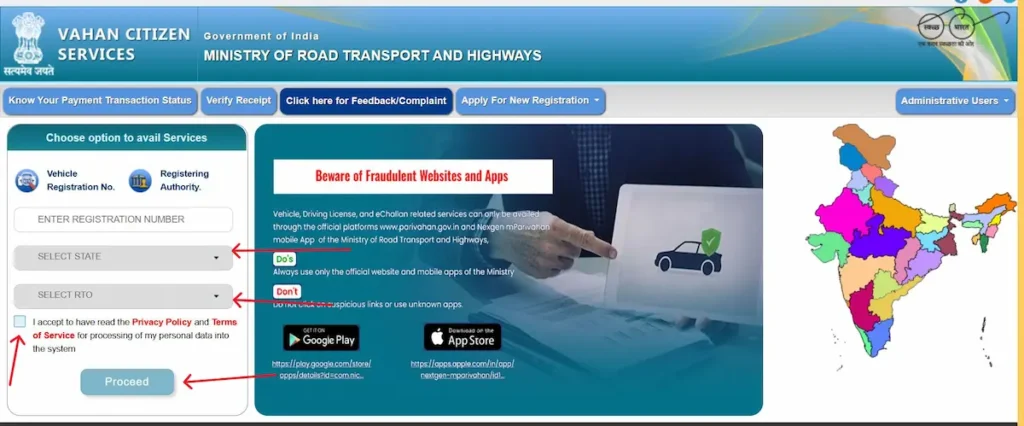
vahan.parivahan.gov.in/vahanservice/. - Enter your Vehicle Registration Number, select your State and RTO from the dropdowns.
- Tick the consent checkbox for the Privacy Policy and Terms of Service, then click Proceed.
- On the next screen, choose Pay Your Tax and verify with the OTP sent to your registered mobile number.
- Pick your tax mode, review the calculated amount, and complete payment via UPI, net banking, or card. Download the receipt — that’s your only proof of payment if the record doesn’t update instantly.
State road-tax slabs vary widely — Karnataka, Maharashtra, and Telangana run highest (13–18% of vehicle cost); Himachal, Punjab, and the North-East are lowest (5–8%). Commercial vehicles crossing state lines pay Border Tax through the separate Check Post Tax module before crossing.
Check Vehicle Insurance Validity
- Open
vahan.parivahan.gov.in/nrservices/. - Click Know Your Vehicle Details in the top menu.
- On the Citizen Login screen, enter your mobile number, solve the captcha, and click Next. (First-time users tap Create account — takes about a minute with mobile OTP.)
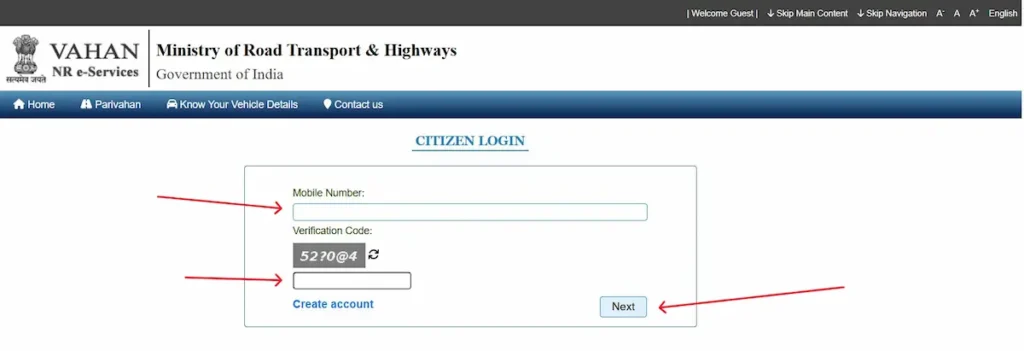
- After login, enter the vehicle’s registration number and captcha, then click Vahan Search.
- The result shows the Insurance Validity field with active/expired status and expiry date — along with PUC, fitness, and basic vehicle info.
The Vahan view shows status only, not your policy number or insurer name. For those details, use the IIB (Insurance Information Bureau) portal at iib.gov.in and search by vehicle number.
Check PUC (Pollution Under Control) Validity
- Open
puc.parivahan.gov.in. - Click PUC Certificate in the top menu.
- Enter your vehicle registration number and the last 5 digits of the chassis number.
- Solve the captcha and click PUC Details. Your certificate number, issue date, expiry date, and issuing centre appear on screen — use Print/Download to save a copy.
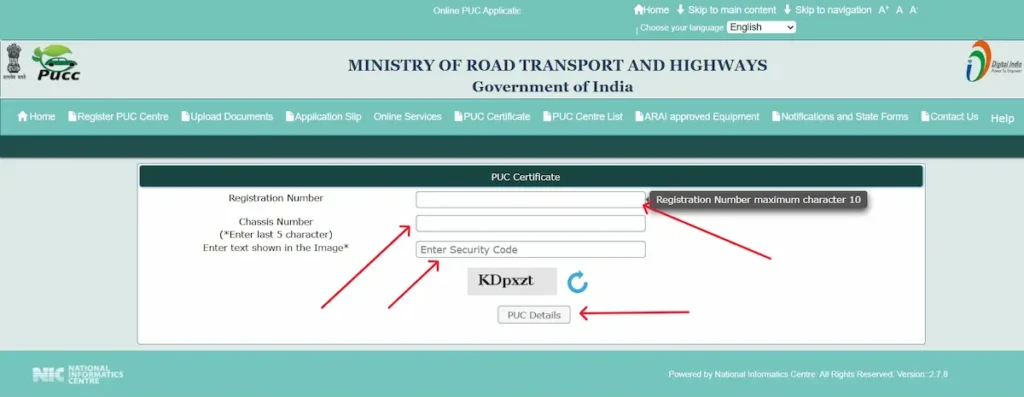
If the screen shows “No record found,” the testing centre may not have uploaded your data yet — wait a few hours and retry. PUC validity is also visible inside your mParivahan dashboard if the vehicle is added there.
Renew at any authorised pollution-checking centre (most petrol pumps run one). Driving with an expired PUC carries a fine of up to ₹10,000 under the Motor Vehicles (Amendment) Act, 2019.
Check Fitness Certificate
For commercial vehicles: fitness must be renewed every year, and ATS testing is mandatory. For private vehicles: the fitness certificate is initially valid for 15 years (linked to the RC), then renewed every 5 years along with the RC, with Green Tax added at each renewal.
What Happens If You Ignore a Challan
Ignoring a traffic challan doesn’t close the case. It moves to the next stage of enforcement, and each stage costs more than the last.
Day 0–60 — pay on echallan.parivahan.gov.in. This is the standard window in most states; a few use 30 or 45 days, so check the due date on your challan SMS. Settle the fine here and the matter ends — no court, no record beyond the receipt.
Day 60+ — the challan moves to Virtual Court. Once the window closes, the case shifts to vcourts.gov.in and the eChallan portal stops accepting payment. To settle:
- Open
vcourts.gov.in. From the Settle your case online on virtual courts dropdown, pick your state and department (for example, “Kerala – Police Department” or “Delhi – Traffic Department”), then click Proceed Now. - On the search screen, choose how you want to find your case using one of the four tabs: Mobile Number, CNR Number, Party Name, or Challan/Vehicle No.
- Enter the corresponding detail, solve the captcha, and click Submit.
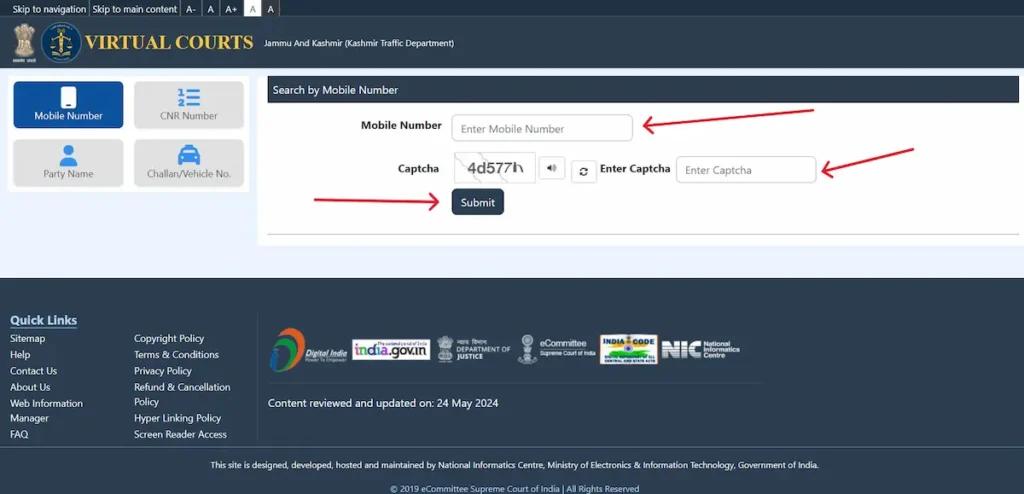
- When your case appears, click View to see the offence details and the proposed fine.
- Choose Pay Fine or I wish to contest the case. Verify with OTP — if your mobile isn’t linked, use the vehicle’s chassis and engine numbers as the alternative verification.
- If paying, complete payment on the ePay gateway and download the receipt. If contesting, note the physical court name and hearing date shown in the acknowledgement.
If you ignore the court summons too, three things can follow under the Motor Vehicles Act:
- RTO blacklisting. A blacklisted RC cannot be transferred, sold, or renewed. Insurance and PUC renewals are refused at counter level.
- Driving licence suspension (Section 19) in many states — usually triggered for repeat offenders or serious violations.
- Non-bailable warrant in extreme cases, issued by the magistrate when summons are repeatedly ignored. Most common in drunk-driving and hit-and-run records, rare otherwise.
To remove a blacklist: clear every pending challan including court fees, then file a written application at your local RTO with all payment receipts attached. Verification usually takes 7–30 days. Once approved, the RC reverts to active and all blocked services resume.
Frequently Asked Questions
Is mParivahan an official government app?
Yes. NextGen mParivahan is built by the National Informatics Centre (NIC) under the Ministry of Road Transport and Highways. It’s the only Government of India app for digital RC and DL — anything else with a similar name on the Play Store is a clone.
Is the digital RC and DL on mParivahan valid in all Indian states?
Yes. Under Section 4 of the IT Act, 2000 and the MoRTH advisory dated 19 August 2018, virtual documents shown live on mParivahan or DigiLocker are legally equivalent to physical cards across every state and Union Territory.
Can I show a screenshot or PDF of my RC to traffic police?
No. Only the live document opened inside the mParivahan or DigiLocker app counts. Officers verify by scanning the QR code against the live database — a static image bypasses that check, so they can legally refuse it.
Is the mParivahan app free?
Yes, the app is free to download, install, and use. Charges only apply for actual government services like challan payment, DL renewal, or fitness inspection — those are the regular RTO fees, not app fees.
Official Helpdesk & Contact Information
| Service Area | Helpline | |
| mParivahan App issues | helpdesk-mparivahan@gov.in | +91-120-4925505 |
| Vahan (Vehicle) services | helpdesk-vahan@gov.in | +91-120-4925505 |
| Sarathi (DL) services | helpdesk-sarathi@gov.in | +91-120-4925505 |
| eChallan technical support | helpdesk-echallan@gov.in | +91-120-4925505 |
| Web Information Manager (escalation) | wim.rth@nic.in | — |